
New value (for specific property): once object matches Find Value, the Batch Change will aply New Value to it.
New Value is non-case sensitive too except when working with Text Content of Text, Mtext, Dimension and Table.
New value can be:
Note:
For example: New value = "ARCH-" = "AAA-"; "CONC" = "C" will rename "ARCH-FURN" layer to "AAA-FURN", and "TAG-CONC" layer to "TAG-C"
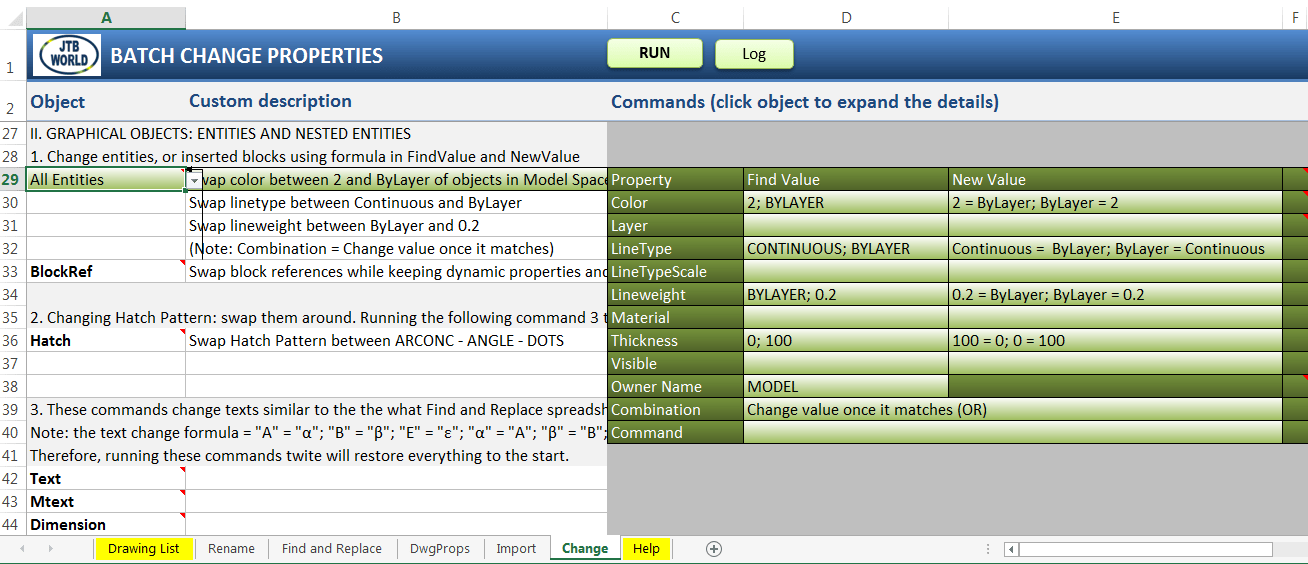
Example of formulas in Change spreadsheet
Normally 1 object has many properties. Each property has its own Find Value and New Value (except ReadOnly property, like IsDynamicBlock, will have no New Value). To access full properties form of a object, use "Change" spreadsheet. Other spreadsheets are design for a specific property or specific group of properties only.
When working "Change" spreadsheet, the issue is to how determine object is matched those Find Values. Cause Find Value results can be varies, you can choose combination type at Combination box.There are 2 options:

You can copy the JTB Batch Change workbook to other locations. Within the workbook, you can copy, delete or rename worksheets.
BackUp folder including log files will be automatically created inside the running JTB Batch Change workbook's folder.
Before running, all your drawings will be backed up to subfolders in BackUp folder. They are categorized by worksheet, date and original folder. To find your old drawing (before being changed), click "Log" command, select the right Batch Change session, then click "Open Back Up Folder".
Note: You should manually empty your BackUp folder to save disk space. A warning will bring up if there is not enough diskspace.

Visit our webpage for more information: www.jtbworld.com/JTB_Batch_Change.html
For support email us at info@jtbworld.com